
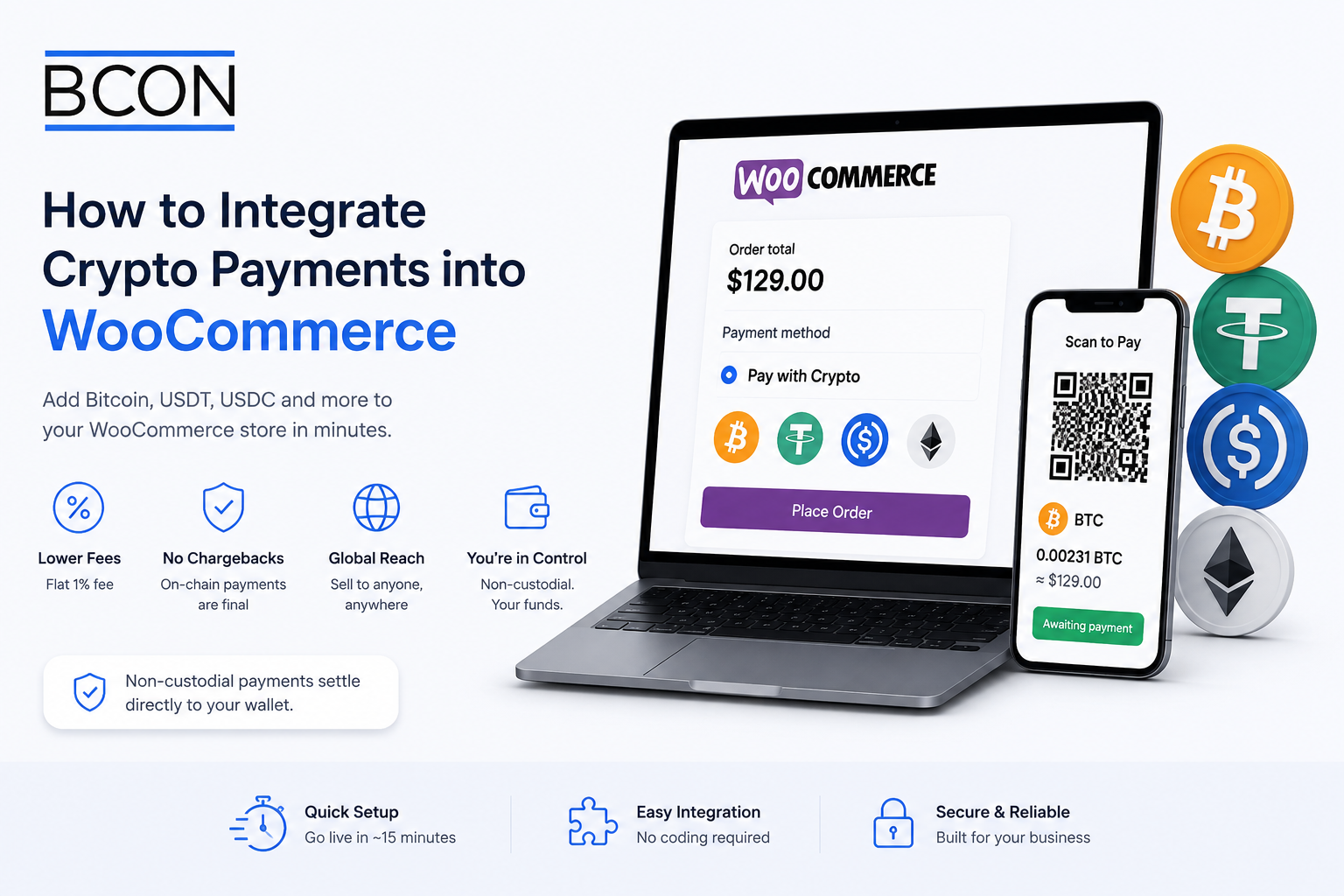








How to Integrate Crypto Payments into WooCommerce
WooCommerce powers a huge share of online stores, and adding crypto to it is one of the easiest upgrades you can make. With the right plugin you can start accepting Bitcoin, USDT, USDC and other coins without touching code or leaving your WordPress dashboard. At Bcon Global we built a WooCommerce plugin that settles payments straight to your wallet, so this guide shows the full setup, the settings that matter and how to keep the process secure and low-cost.
Whether you sell physical products, digital downloads or subscriptions, the steps are the same. By the end you will have a crypto payment option live at your checkout.
Why Add Crypto to WooCommerce?
Crypto is not just another payment button; it changes the economics of your store. The reasons merchants add it are practical:
- Lower fees than card processing, often a flat 1% instead of 2.5-4%.
- No chargebacks, because on-chain payments are final.
- New customers who prefer to pay in crypto or lack easy card access.
- Fast settlement directly to a wallet you control.
- Global sales without extra cross-border surcharges.
For a store already running on WooCommerce, these gains come from a single plugin rather than a costly rebuild.
What You Need Before You Start
Setup is quick when you have the basics ready. You will need three things:
- A WordPress site with WooCommerce installed and active.
- A crypto wallet address you control, where payments will land.
- An account with a non-custodial gateway that offers a WooCommerce plugin.
That is it. With a non-custodial provider you usually do not need to pass KYC, and there is no traditional merchant account to apply for.
Step-by-Step: Adding Crypto to WooCommerce
Here is the exact sequence to go live. Most stores complete it in about fifteen minutes.
- Create your gateway account and connect the wallet address that will receive payments.
- Download and install the plugin from the WordPress plugin directory or the provider, then activate it.
- Enter your API key from the gateway dashboard to link the plugin to your account.
- Enable the coins you want to accept, such as BTC, USDT, USDC and ETH.
- Set your base currency so prices convert automatically at checkout.
- Place a test order to confirm the flow, then switch the payment method live.
Once active, “Pay with crypto” appears at checkout. The customer picks a coin, sends the payment, and the plugin updates the order status automatically when the transaction confirms.
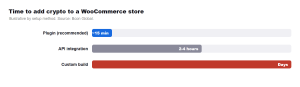
As the chart illustrates, the plugin route is by far the fastest path. An API integration suits developers who want deep customization, while a manual approach is slow and error-prone and is not recommended for a live store.
Plugin vs API: Which Should You Use?
Both options connect your store to the blockchain, but they suit different needs. This quick comparison helps you choose.
| Factor | WooCommerce plugin | Custom API |
| Setup effort | Low (no code) | Higher (developer needed) |
| Time to live | ~15 minutes | Hours |
| Customization | Standard checkout | Full control |
| Maintenance | Handled by plugin updates | Your responsibility |
| Best for | Most stores | Bespoke or headless builds |
For the majority of merchants, the plugin is the right call. You can always move to the API later if you build a custom checkout.
Keep Control: Choose a Non-Custodial Plugin
Not every WooCommerce crypto plugin is equal, and the difference that matters most is custody. A custodial plugin routes payments through the provider’s wallets before paying you, which adds delay and risk. A non-custodial plugin sends each payment straight to your own wallet.
With a non-custodial WooCommerce plugin, your store’s revenue never sits in someone else’s account – it is yours the moment the customer pays.
This is how the Bcon plugin works: payments settle directly to your wallet, there is no KYC to start, the fee is a flat 1%, and you can accept coins across multiple blockchains. You keep control of funds while WooCommerce handles the orders.
Security and Best Practices
A few habits keep your setup safe and smooth. Keep WordPress, WooCommerce and the plugin updated, since outdated software is the main security risk on any store. Protect your wallet’s seed phrase and never paste private keys anywhere – the plugin only needs a public address and an API key. Finally, always run a test transaction after any change to confirm the checkout still works as expected.
It is also worth enabling clear on-page messaging so customers know which coins and networks you accept, which reduces failed or mis-sent payments.
Handling Refunds, Subscriptions and Order Statuses
Crypto behaves differently from cards in a few operational ways, and knowing them keeps your store running smoothly. Because on-chain payments are final, refunds are not automatic reversals – you send crypto back manually from your wallet to the customer’s address, which keeps you in control and prevents forced chargebacks. For subscriptions, remember that a blockchain payment is a one-time transfer by nature, so recurring billing needs either a renewal invoice each cycle or a subscription plugin that requests a fresh payment when the term ends.
Order statuses, on the other hand, are handled for you. The Bcon plugin updates WooCommerce states automatically – pending, processing and complete – as the transaction is detected and then confirmed on-chain. Your fulfillment workflow, stock updates and confirmation emails fire exactly as they do for any other payment method, so adding crypto changes how customers pay without changing how you operate.
Frequently Asked Questions
How do I accept crypto on WooCommerce?
Install a crypto payment plugin, connect your wallet address, add your API key, enable the coins you want and place a test order. Most stores are live in about fifteen minutes.
Do I need a developer to add crypto to WooCommerce?
No. A plugin requires no coding. You only need a developer if you want a fully custom checkout via the API.
Is KYC required to accept crypto on my store?
With a non-custodial gateway like Bcon, merchant KYC is generally not required, because the provider never holds your funds and only needs a public wallet address.
Which coins can I accept on WooCommerce?
With Bcon you can accept Bitcoin, Ethereum, USDT, USDC and 50+ other assets across several blockchains, all from one plugin.
What does a WooCommerce crypto plugin cost?
The Bcon plugin uses a flat 1% service fee per payment with no monthly minimums. Network fees are paid by the customer.
Adding crypto to WooCommerce is a fast, low-cost win: one plugin gives you lower fees, no chargebacks and direct-to-wallet settlement. Choose a non-custodial option and you keep full control of every payment while WooCommerce manages the orders.
Ready to enable crypto on your store? The Bcon WooCommerce plugin lets you accept BTC, USDT and more in minutes, straight to your wallet.